
MCP / Coding agents / Project management
Connect Leera to your agent managers over MCP
MCP setup for Conductor, Superset, RunPane, and Nimbalyst: scoped access, safe credentials, and local or remote agents.
At a glance
Keep the brief, issues, and test evidence together while coding agents work in parallel. Configure a supported MCP client in the environment where your agent runs, then give it scoped access to Leera.
Parallel coding sessions still need a shared understanding of the work: the issue, its acceptance criteria, the implementation notes, and the evidence that a change was tested. Leera can provide that project context through its MCP server. The manager organizes the coding sessions; a supported MCP client connects those sessions to the workspace.
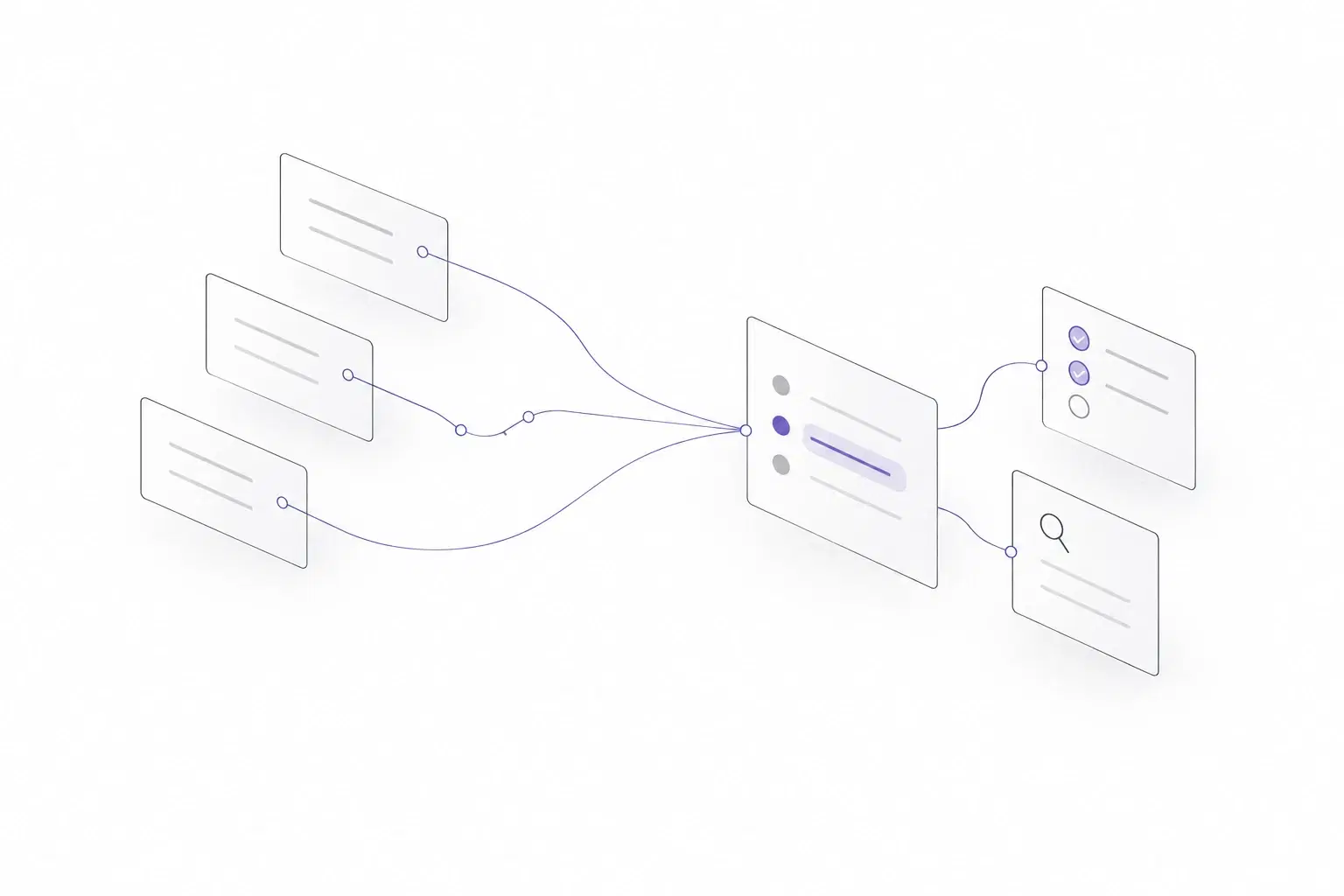
Validation status: Setup guidance based on vendor documentation reviewed September 20, 2026. These manager-and-Leera combinations have not yet been validated end to end. This guide describes documented setup paths, not certified compatibility, a vendor partnership, or a native integration. The artwork is a conceptual illustration, not a product screenshot.
Start with the agent and its execution environment
Before adding a server, identify which agent is running and where it executes. A desktop window may control a local process, a cloud session, a remote host, or a WSL environment. Each can have its own configuration files, credentials, and network access.
Some managers also provide their own MCP settings or built-in chat. Do not assume every session uses the same configuration. Follow the setup for the specific agent and mode you have selected, and record their versions when verifying the connection.
Open Workspace Settings → AI clients → Agent managers in Leera for the in-app guides. These cards open instructions. They do not authorize access or show that a manager is connected. OAuth connections continue to identify the client that actually performed authorization.
Choose a documented setup path
The following vendor documentation was reviewed on September 20, 2026. Recheck the linked instructions when changing versions or execution modes.
Conductor
Conductor documents both local Mac sessions and Cloud sessions. Its MCP reference directs users to the configuration for their agent, including Claude Code and Codex. Enterprise policy can disable custom MCP servers.
For a local session, configure the client on the Mac. For Cloud, the endpoint and credentials must be available from the cloud runtime. A localhost URL on your laptop does not reach that runtime. Conductor documents Cloud Computer environment variables; use an appropriate secret there when following a token-based setup. Check the chosen client's supported authorization flow rather than assuming cloud execution always rules out OAuth.
Superset
Superset documents coding-agent integration and local or remote hosts. Configure MCP on the host that launches your agent, with the endpoint and credentials available to that process. A local configuration file alone does not establish the same setup on a remote host.
Its MCP documentation also describes built-in chat configuration and Superset's own MCP server. Keep those distinct from adding Leera as a server to a coding agent. Confirm which configuration your selected session reads.
RunPane / Pane
Pane organizes terminal coding sessions and worktrees, including remote Pane environments. Use the MCP instructions for the terminal agent you launch. When the selected terminal runs inside WSL, configure the agent and its credentials inside that WSL environment.
Check a newly created worktree instead of relying only on the first terminal. User-level configuration and project-level files have different inheritance rules; a new worktree must still receive the required credentials without putting them in Git.
Nimbalyst
Nimbalyst provides MCP settings at application and project scope, with manual server configuration and authorization options. Follow the current instructions for the selected agent and server. If you configure the underlying agent directly, confirm that the session loads that configuration.
Choose the scope deliberately. A server available to every project has a different reach from one configured for a single project, and the Leera credential must still enforce the intended access.
Connect to the correct Leera endpoint
Copy the MCP URL shown by your Leera instance. The illustrative address below is a placeholder, not a public service to connect to:
https://YOUR-LEERA-INSTANCE/mcp
The endpoint uses Streamable HTTP. Your reverse proxy must route /mcp to the backend. Check reachability from the actual agent environment, including TLS and any VPN or firewall rules. For remote access, use HTTPS. A working website in your own browser does not prove that a cloud or remote agent can reach the MCP service.
Keep credentials out of your worktrees
Use the client's supported OAuth flow or create a personal access token in Leera. New personal tokens start with Planner read access. Set an expiry, restrict projects, and add only the scopes needed for the assignment. OAuth can request broader access, so review the consent screen.
Give each manager or purpose its own named token when using tokens. That lets you revoke one setup without replacing every other credential. The plaintext token is displayed only when created; store it in the client or host's supported secret mechanism.
For Claude Code, its MCP documentation describes environment-variable expansion in configuration. A project file can refer to the secret without containing it:
{
  "mcpServers": {
    "leera": {
      "type": "http",
      "url": "https://YOUR-LEERA-INSTANCE/mcp",
      "headers": { "Authorization": "Bearer ${MCP_LEERA_TOKEN}" }
    }
  }
}
For Codex, the MCP configuration guide supports a bearer token environment-variable reference in the user configuration or a trusted project's configuration:
[mcp_servers.leera]
url = "https://YOUR-LEERA-INSTANCE/mcp"
bearer_token_env_var = "MCP_LEERA_TOKEN"
These examples contain no secret. Set MCP_LEERA_TOKEN in the environment of the process that runs the agent. A desktop launch, remote host, or cloud session may not inherit your current terminal's environment. Restart the session if its environment changed. Never replace the reference with a real token in a committed file, setup log, or shared screenshot.
Verify one read, one write, and a new worktree
Start with a record you know. Ask the client to retrieve one issue by its exact key and compare its title, project, and acceptance criteria with Leera. If it cannot find the record, check the workspace, project restriction, scope, and available tools before broadening access.
Next, deliberately authorize one small change to a trial record. Ask the client to return the record identifier and read the saved result back. Inspect it in Leera. A fluent response alone is not evidence that a tool ran successfully.
The endpoint must be available from the client, and the requested action must satisfy its scope, module, and project permissions. On self-hosted instances, AI creation of issues, test cases, and projects also requires free registration and follows the instance's license allowances. Check these prerequisites before treating a rejected write as a client configuration problem.
Finally, repeat the read in a fresh worktree or session. This checks the part that often differs in a manager: whether the endpoint configuration and secret reach the new process. Record the manager version, agent version, execution environment, auth method, and observed result. Revoke the trial credential when finished.
Give parallel sessions clear ownership
Use one issue or a clearly separated subtask per coding session. Retrieve current state before posting an update, and ask the session to report what it changed, what it checked, and what remains unresolved. Leera does not serialize separate agents' editing decisions for you.
MCP actions use the connecting person's identity and permissions. A manager card or a separately named token does not create an agent teammate. Review issue history, documents, and QA evidence with that distinction in mind.
Test execution remains separate from recording its result. Only report a pass when a test actually ran and produced that outcome. Keep the run or evidence reference with the update so someone can inspect it.
When a connection stops working, start with the MCP troubleshooting guide. Check the failing layer—network, authorization, configuration scope, or tool access—and share sanitized errors rather than credentials.
Frequently asked questions
Can I use Leera from Conductor, Superset, RunPane, or Nimbalyst?
The setup guide explains the MCP configuration paths documented by these agent managers. A supported client connects to Leera over Streamable HTTP using OAuth or a scoped personal access token. Configure it where the agent actually runs: your Mac, a remote host, a cloud environment, or WSL. These manager-and-Leera combinations have not yet been validated end to end. The guides are not native integrations, partnerships, or connected-status indicators.
Does a manager setup card mean the agent is connected?
No. The Agent managers cards in Workspace Settings → AI clients open setup guides. They do not begin OAuth or report a connection. Confirm access inside the actual client with a familiar read, then inspect the result in Leera.
Can an agent reach a self-hosted Leera instance?
It depends on where the agent executes and your network configuration. A local agent may reach a local or LAN instance. A cloud or remote agent needs a route from that environment; localhost refers to that environment, not your laptop. Use HTTPS for remote access and verify the actual endpoint from the agent host.
Do parallel agents appear as separate Leera teammates?
No. MCP calls use the identity and permissions of the person who created the token or authorized OAuth. Separate tokens help you label, scope, expire, and revoke access, but they do not create distinct agent members or guarantee attribution of every change to an individual session.